Accept payments with Square Register
About Square Register
Square Register is an integrated point of sale system that lets you start selling right out of the box. Square Register includes two displays — a seller-facing point of sale screen to ring up orders, and a customer-facing display to show customers what they’re buying and let them complete payment, so you can keep your line moving fast.
Square Register (1st generation) accepts built-in tap, dip, and swipe payments. Square Register (2nd generation) accepts built-in tap and dip payments, with swipe payments available by plugging a Square Reader for magstripe (USB-C) into the seller display.
Before you begin
Make sure you have set up Square Register (1st generation) or set up Square Register (2nd generation).
When a customer taps, dips, or swipes their card in person, you pay a standard fee per transaction. Learn more about Square payment fees
Square Register is powered by Square Point of Sale software and can also be used with Square for Restaurants, Square for Appointments, and Square for Retail.
Square works with any US-issued and most internationally-issued payment cards, and also supports mobile wallets such as Apple Pay, Google Pay, Samsung Pay, and Afterpay. Learn more about how to Accept payment cards with Square.
Tap, dip, and swipe payments
Select your version of Square Register below to learn how to accept tap, dip, and swipe payments.
Accept payments on your Square Register (1st generation) with the customer display docked or undocked.
- Position the customer display so your customers can easily see it and pay with their cards and devices.
- Add items to the current sale by tapping on the item in your Library or Favorites tab. If you’re using a supported barcode scanner, you can scan an item’s barcode with a SKU saved to your Item Library.
- You can tap on items in the current sale to select a variation or modifier, adjust the quantity, add a note, or remove the item.
- Tap Charge to prepare for payment.
- Help your customer pay with one of the following methods:
- Tap: Ask your customer to hold a contactless device or card near the contactless logo to trigger the payment. The contactless logo lights up after tapping Charge.
- Dip: Ask your customer to insert a chip card into the chip card slot on the customer display and leave it in place until the sale is complete. The front of the card should face your customer.
- Swipe: Ask your customer to swipe a magnetic-stripe card through the magstripe reader. Customers can swipe in either direction.
- When you hear a beep and see a confirmation on your screen, the payment has successfully completed.
- If the customer wants a digital receipt, they can enter their phone number or email address on the customer display. After a payment completes, the final screen will read All Done.
- To cancel the payment before it’s been processed, tap the X icon or the back arrow to return to the previous screen.
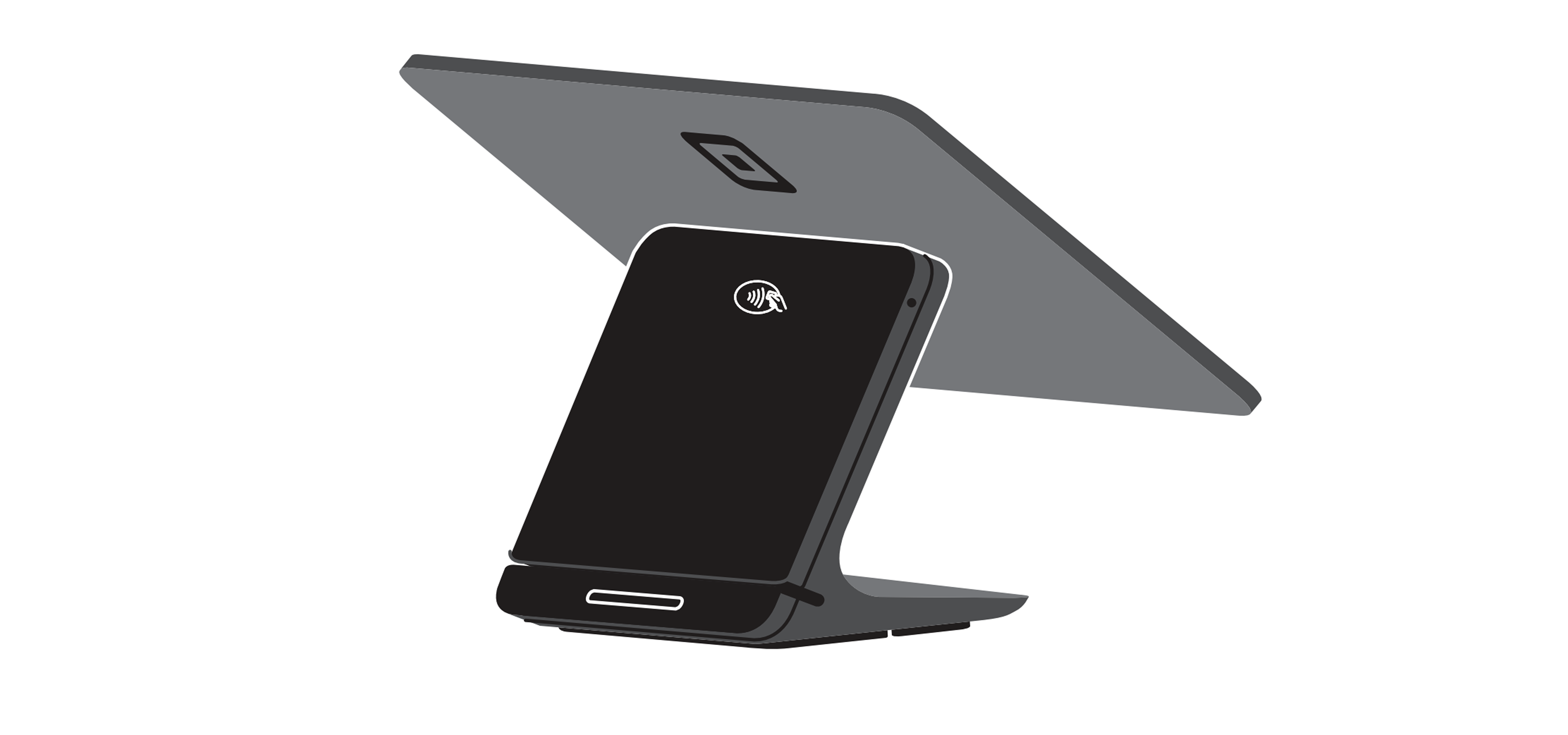
Image description: Square Register (1st generation) with customer display docked to the seller display.

Image description: Three panels showing Square Register (1st generation) payment acceptance methods with the customer display docked: left panel demonstrates contactless tap payment, center panel shows chip card insertion, right panel illustrates magstripe card swipe.
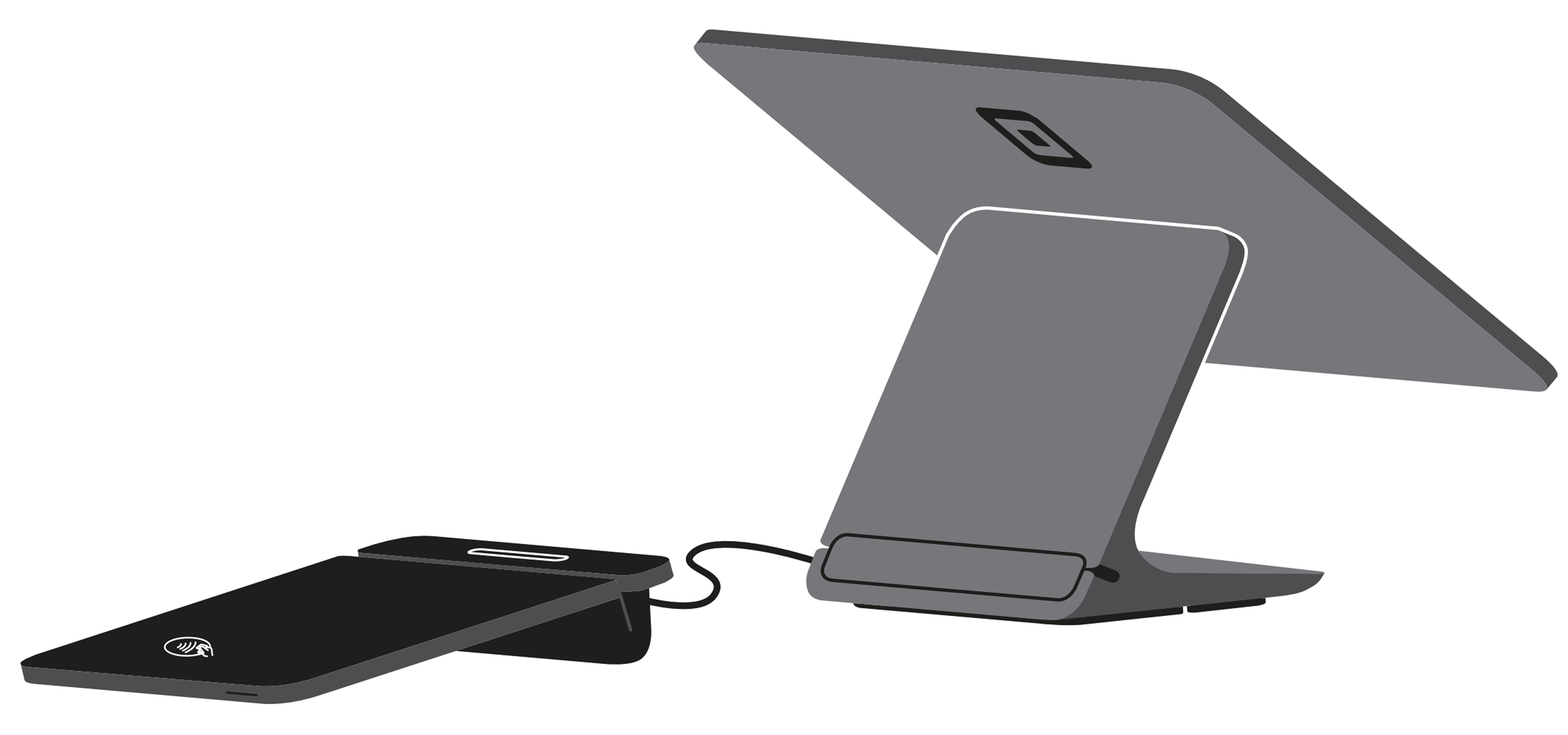
Image description: Square Register (1st generation) with customer display undocked.

Image description: Three panels showing Square Register (1st generation) payment acceptance methods with the customer display undocked: left panel demonstrates contactless tap payment, center panel shows chip card insertion, right panel illustrates magstripe card swipe.
Accept payments on your Square Register (2nd generation) with the customer display docked or undocked.
- Position the customer display so your customers can easily see it and pay with their cards and devices.
- Add items to the current sale by tapping on the item in your Library or Favorites tab. If you’re using a supported barcode scanner, you can scan an item’s barcode with a SKU saved to your Item Library.
- You can tap on items in the current sale to select a variation or modifier, adjust the quantity, add a note, or remove the item.
- Tap Charge to prepare for payment.
- Help your customer pay with one of the following methods:
- Tap: Ask your customer to hold a contactless device or card near the contactless logo to trigger the payment. The contactless logo lights up after tapping Charge.
- Dip: Ask your customer to insert a chip card into the chip card slot on the customer display and leave it in place until the sale is complete. The front of the card should face your customer.
- Swipe: Square Register (2nd Generation), requires a Square Reader for magstripe (USB-C) plugged into the seller display to accept swipe payments. Square gift cards can be accepted with a Square Reader for magstripe (USB-C), a compatible barcode scanner, or by manually entering the card numbers on the gift card.
- When you hear a beep and see a confirmation on your screen, the payment has successfully completed.
- If the customer wants a digital receipt, they can enter their phone number or email address on the customer display. After a payment completes, the final screen will read All Done.
- To cancel the payment before it’s been processed, tap the X icon or the back arrow to return to the previous screen.
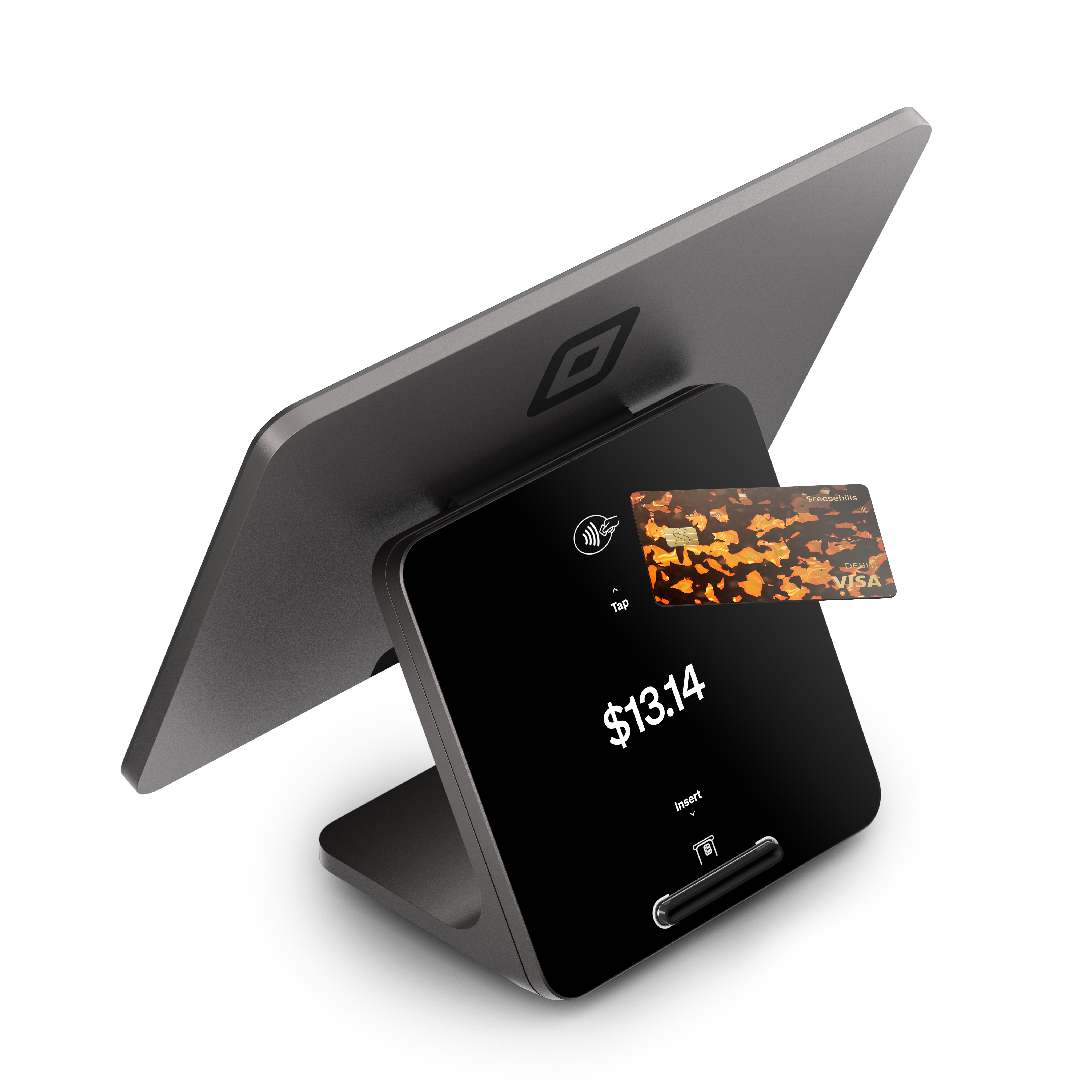
Image description: Square Register (2nd generation) with customer display docked to the seller display, accepting a contactless card (tap) payment.
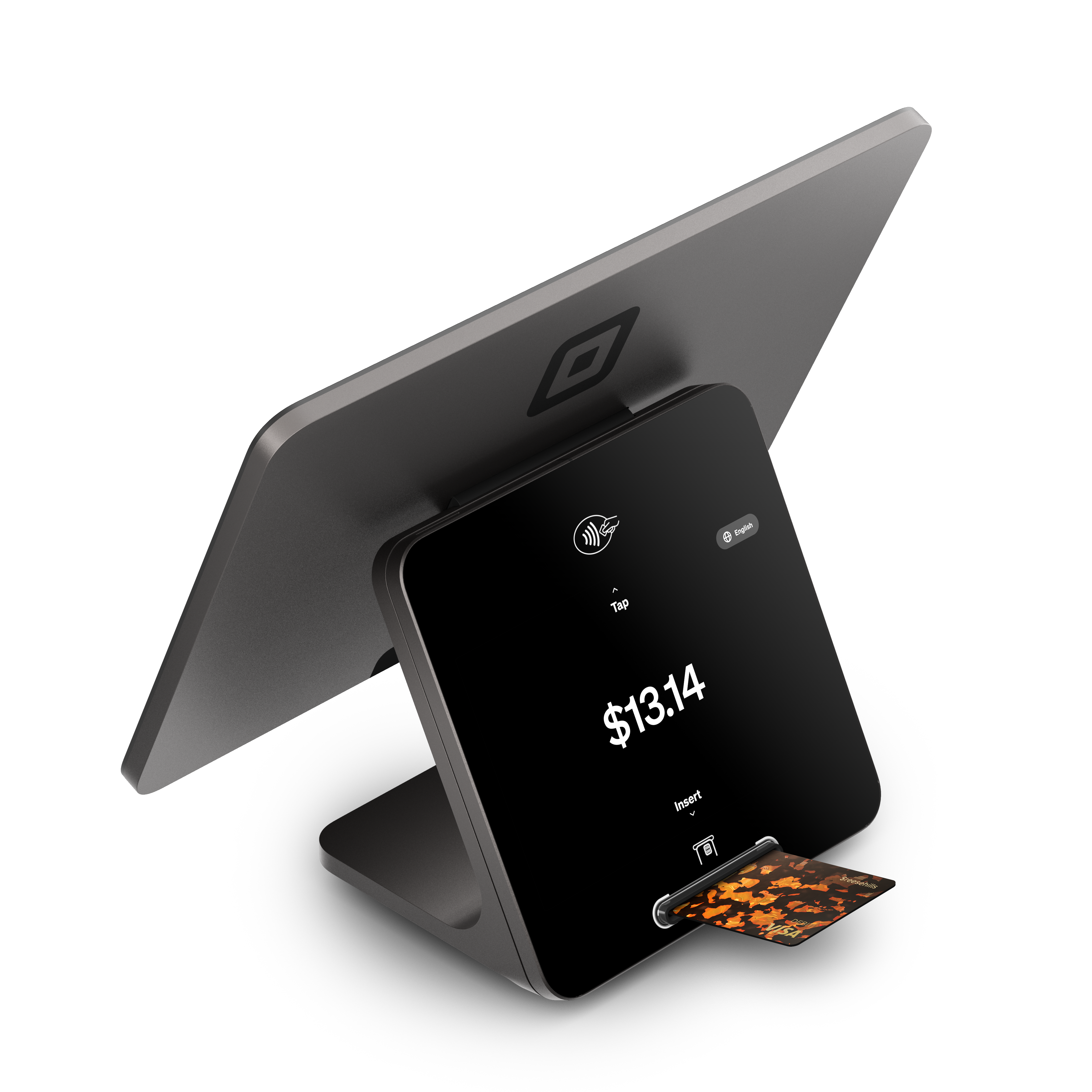
Image description: Square Register (2nd generation) with customer display docked to the seller display, accepting a chip card (insert) payment.
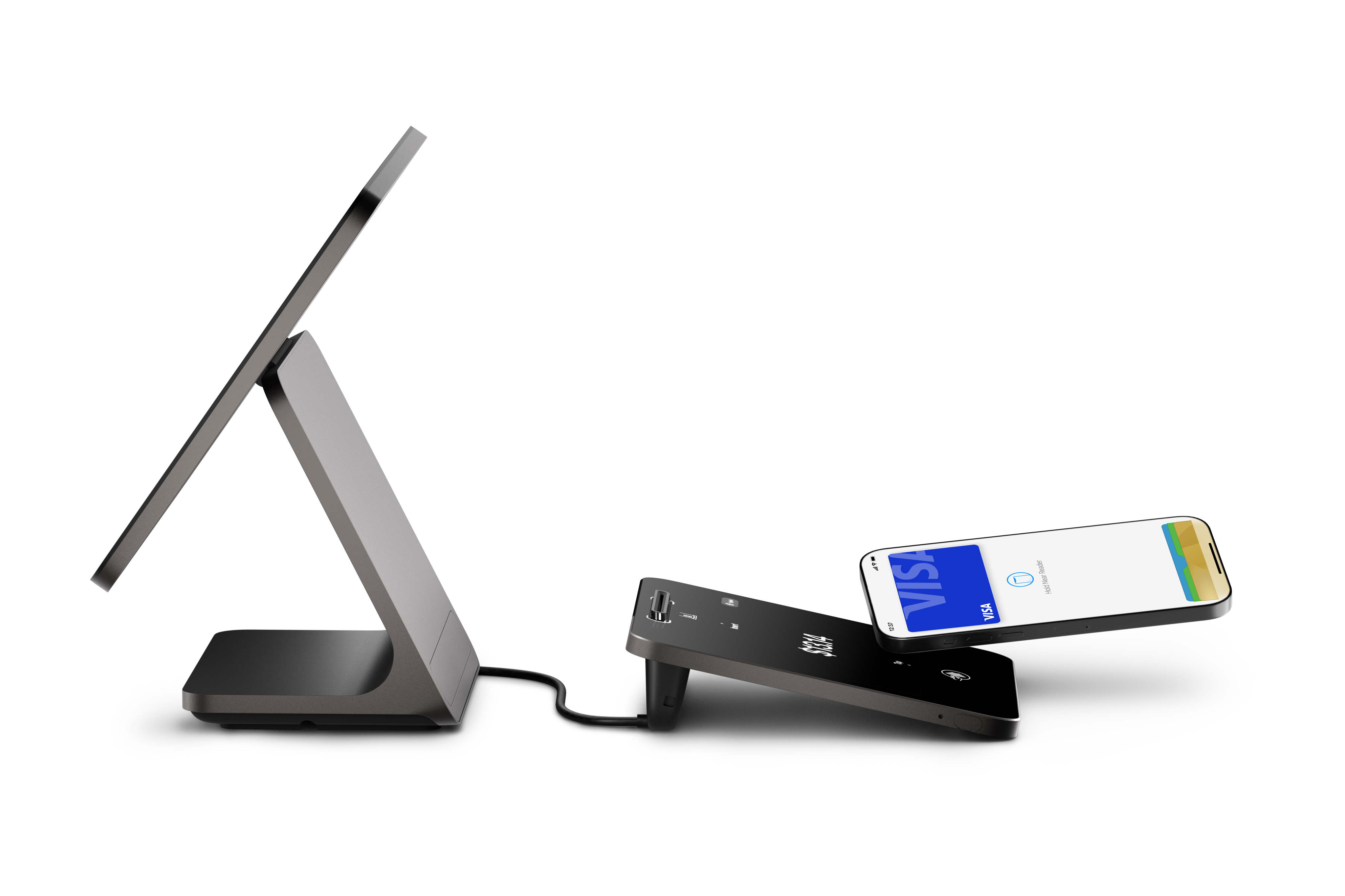
Image description: Square Register (2nd generation) with customer display undocked, accepting a contactless mobile (tap) payment.
More payment types
In addition to payment cards, you can take payments in a number of other ways, including card on file, house accounts, QR codes, cash, and more. Learn how to Customize payment types with Square Point of Sale and Accept cash and checks with Square.
If you're enrolled in bitcoin payments, buyers can also select bitcoin as a payment method directly from the customer-facing display during checkout. On Square Register (2nd generation), your buyers can also pay with bitcoin by tapping their phone on the customer-facing display using a Lightning-enabled wallet. Learn how to Accept and manage bitcoin payments.