Troubleshoot your barcode scanner
Barcode scanners connect to your Square hardware or device through Bluetooth or USB.
Learn to connect a barcode scanner to your point of sale.
This article provides troubleshooting to address issues with barcode scanners.
Before you begin
When to troubleshoot
Barcode scanner troubleshooting involves steps that include checking your device, charging and resetting your barcode scanner. If at all possible, try to troubleshoot your scanner after hours. If you must troubleshoot during the working day, try to avoid peak busy hours so your customers will experience few delays.
Check indicator lights on Socket Mobile Bluetooth Scanners
Check your setup
Confirm your device is compatible. Bluetooth scanners work with iPad and iPhone. Camera barcode scanning is available on both iOS and Android devices.
Check that your scanner is fully charged.
Make sure the scanner is paired to your iOS device and not to another device.
Check that Bluetooth is turned on within your iOS settings. If enabled, turn it OFF and back ON.
Option 1: Troubleshoot Bluetooth scanners
Factory reset your Bluetooth barcode scanner:
Turn the barcode scanner on.
Press and hold the trigger button while pressing the power button. After 15 seconds, the scanner will beep.
Release the trigger button. The scanner will beep 5 times and power off.
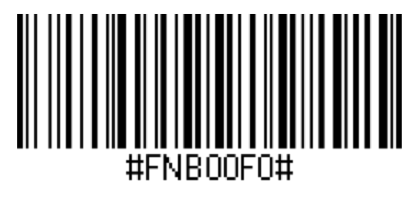
Turn the scanner back on and scan the barcode below:
Option 2: Troubleshoot USB scanners
If you are having trouble pulling up your onscreen keyboard, double-click the power button on the scanner.
- Check that your Square hardware (Square Stand, Square Register or Square Terminal) is plugged into a hardware hub and that the hub is plugged into a power adapter.
- Clear the hardware hub of any debris or dust.
- Plug the USB scanner into a different port on the hardware hub.
If you connect your USB scanner and receive an error message that states “USB DEVICE IS NOT COMPATIBLE,” or your scanner appears to not be recognised by the Square device, you’ll need to make sure that your scanner is set to the right mode.
- From page 4 of the Quick Start Guide, scan the barcode labeled USB Keyboard HID while the scanner is plugged into the hardware hub.
- Unplug the USB scanner and plug it back into the hardware hub.
If you’re having issues with your USB scanner and aren’t receiving any error messages, you’ll want to try restoring the factory settings. Refer to the Quick Start Guide included in the packaging of your USB scanner to factory reset your scanner.
If you do not have the Quick Start Guide that was included in the original scanner packaging, print a copy. You are unable to scan the included barcodes from a monitor or screen.
Select the quick guide specific to your USB scanner:
Option 3: Troubleshoot an Android camera barcode scanner
Android devices support a built-in camera barcode scanner that uses your device’s camera and volume key to scan barcodes. If the camera scanner isn’t working, follow these steps:
Confirm camera barcode scanner is enabled. From the Square app, go to More > Settings > Hardware > Camera Barcode Scanner and make sure the toggle is turned on.
Verify that the Square POS app has camera permissions granted. The app will request permission to use the camera if permission hasn’t been granted when trying to scan a barcode.
Confirm that there’s a green barcode icon in the status bar of your device. This confirms barcode scanning is supported on your device.
Ensure adequate lighting and confirm the barcode is not damaged, blurry or obstructed.
Check that the volume key trigger is working. Press the volume key on your device to activate the camera scanner. If nothing happens, restart the Square app.
If the camera doesn’t activate when you press the volume key, close and reopen the Square app.
If the issue persists, restart your Android device and try again.
Option 4: Troubleshoot an iOS camera barcode scanner
iOS devices (iPhone and iPad) support a built-in camera barcode scanner. If the camera scanner isn’t working on your iOS device, follow these steps:
Confirm camera barcode scanner is enabled. From the Square app, go to More > Settings > Hardware > Camera Barcode Scanner and make sure the toggle is turned on.
Verify that the Square POS app has camera permissions granted. Go to your device Settings > Square > Camera and confirm access is enabled.
Confirm you are on a supported screen. Camera barcode scanning works on the checkout and items screens.
Ensure adequate lighting and confirm the barcode is not damaged, blurry or obstructed.
Select Tap to Scan again to reactivate the camera scanner.
If the issue persists, close and reopen the Square app.
If the issue continues, restart your iOS device and try again.