Transition Square Loyalty to Neighborhoods on Cash App
About Square Loyalty transition to Neighborhoods on Cash App
If you use Square Loyalty and are joining Neighborhoods on Cash App, a network that connects Square sellers with Cash App users, your customer’s loyalty points will be converted to Local Cash. Local Cash is neighborhood-wide rewards customers can use to order from you and other participating businesses on Cash App.
The transition gives you access to:
New processing rate on direct Cash App orders.
Free marketing tools
A network of over 57 million monthly active Cash App users.
Your Square Product Specialist will guide you through this transition, which includes a preparation period before your customers' points automatically convert to Local Cash. After the demo, we’ll send you a notification email with more details about your conversation rate.
Before you begin
If your account doesn’t meet the eligibility requirements to join Neighborhoods on Cash App, you will not be able to transition Square Loyalty to Neighborhoods on Cash App. Learn how to join Neighborhoods on Cash App.
During the transition, you need to do the following:
Review your conversion notification
Review the transition timeline
Prepare your team
Review and update any of your customer service scripts or processes that mention loyalty rewards
Step 1: Review and confirm the conversion value of loyalty points to Local Cash
Check your email for the subject line: "Your loyalty program is transitioning to Neighborhoods on Cash App".
Open the email to find your conversion rate calculation.
Note your specific rate (example: 1 Point = $1.00 Local Cash).
Review your cutover date.
Save the support contact email address in case you have any questions.
Step 2: Understand the transition timeline
Your transition follows the schedule you choose:
- Review conversion details
- Prepare your team
- Current loyalty program continues operating normally
- Customers can still earn and redeem points as usual
Your customers will receive an automated text message informing them that their loyalty points will convert to Local Cash.
- Winback marketing campaign automatically sent to your customers with a coupon
- Loyalty points automatically convert to Local Cash
- Customers receive SMS notifications
- Neighborhoods features activate
- New processing rate begins on direct orders in Cash App. Learn about Square fees.
We’ll send automated text messages to your customers:
- Customers with Cash App: Notification to claim Local Cash
- Customers without Cash App: Link to download Cash App and claim Local Cash
- Multiple conversions: Combined notification for all businesses
Step 3: Prepare your team
You can send an announcement to your team with details about the changes:
Sign in to Square Dashboard and go to Staff > Announcements.
Click + Announcement to create and send your team a message.
Select your Target audience.
-
You can use this template for your team message:
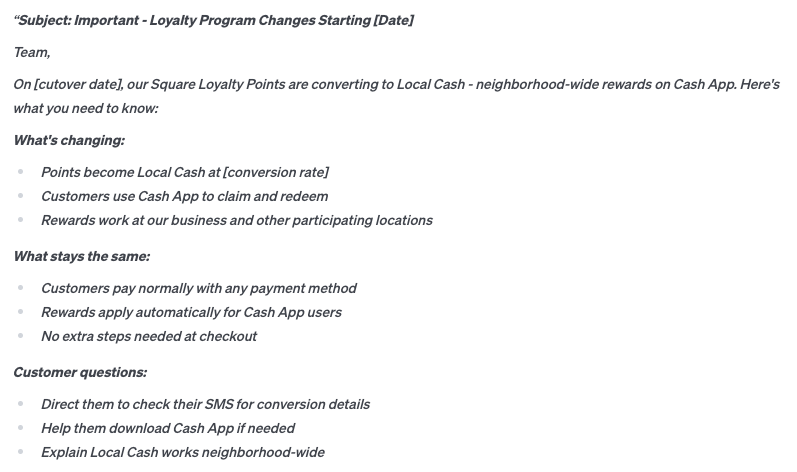
Customize the message with your specific reward details.
Click Next to preview your announcement.
Click Send.
We recommend scheduling a brief team meeting during the preparation period to answer questions and practice explaining the change to customers. Learn more about Neighborhoods on Cash App and Local Cash in Cash App Help Center.
Step 4: Update your signage and marketing information
You should’ve set up an online ordering profile when you joined Neighborhoods on Cash App. Learn how to set up and manage your online ordering profile.
To prepare for post-transition, you can update your checkout or register signage to display your online ordering profile QR code, link, and Cashtag.
We also recommend checking and updating the following:
Receipt messages that mention loyalty points. Learn how to customize receipts.
Website loyalty information
Email signatures with a link to follow you on Neighborhoods. Learn how to set up customer email and text alerts for orders from your website.
Social media bios